Getting Started
From signup to your first live call in 15 minutes.
This guide takes you from a fresh account to your first live AI call in about 15 minutes.
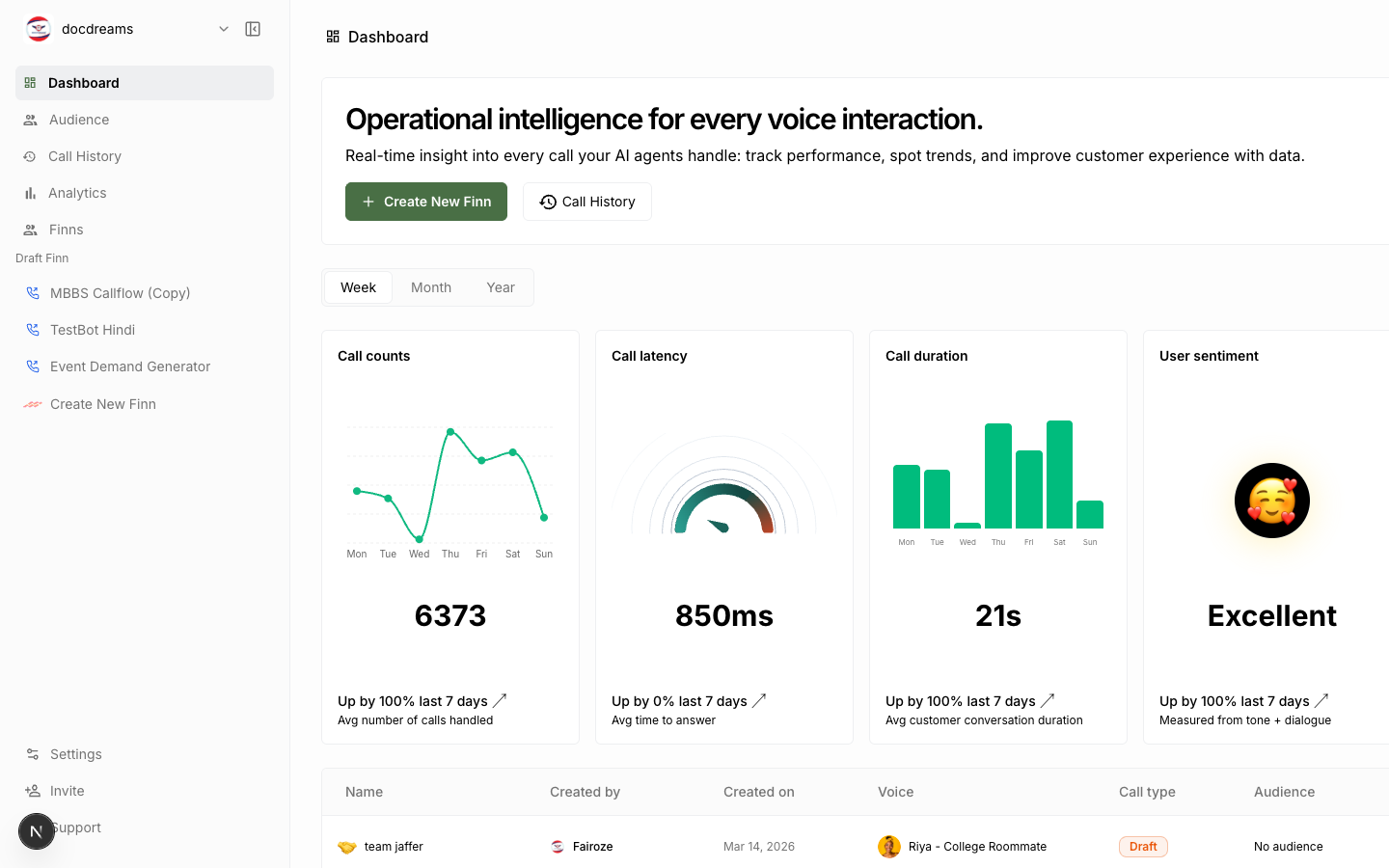 The FinnAI dashboard — your home base for building, launching, and measuring AI voice campaigns.
Before you begin
Make sure you have:
- A FinnAI account (sign up at hirefinn.ai).
- At least one phone number you control, OR plan to purchase one through the platform.
- A CSV of contacts to call, OR a CRM (HubSpot, Salesforce, Pipedrive) you can connect.
- A clear idea of what the call should accomplish (the "job to be done").
The end-to-end workflow
The platform follows a consistent four-step loop. Every campaign you run will follow this same shape.
- Create a Finn — define voice, personality, knowledge, and behavior.
- Build an Audience — list of who the Finn should talk to.
- Launch a Deployment — connect Finn + Audience + phone number, hit Launch.
- Review Analytics — listen to recordings, read transcripts, inspect AI-extracted data, iterate.
Step 1 — Create your first Finn
From the dashboard sidebar, click Create New Finn.
The wizard walks you through:
- Name — a label for you, not the caller. Keep it descriptive:
Sales SDR — Inbound Qualificationis better thanTest 3. - Voice — pick a voice from the library. Listen to samples. Match the voice to the use case (calm and warm for healthcare; energetic for sales).
- Language — primary language the Finn speaks. Most voices support multiple languages; pick the one your audience uses.
- Time Zone — used for scheduling and call-window rules.
- Use Case — high-level category. Affects defaults and analytics grouping.
- Identity — who the Finn is. Example: "You are Maya, a friendly receptionist at Acme Dental."
- Style & Guardrails — how it should sound, and what it must never do. Example: "Speak naturally. Never make medical claims. If asked about pricing, defer to a human."
- Response Guidelines — formatting and behavior rules. Example: "Keep answers under two sentences. Always confirm the appointment time back to the caller."
- Welcome Message — what the Finn says when the call connects. Pick dynamic (LLM-generated) or defined (verbatim script).
Save. Your Finn is now ready to be tested or deployed.
Tip — before launching a real campaign, run a test call to yourself. See Test before you launch below.
Step 2 — Add your contacts
Navigate to Audience in the sidebar.
Two ways to get contacts in:
CSV upload. Click Import CSV. Your file must contain at minimum:
name, phone_number, country_code
Alice Chen, 5551234567, +1
Bob Singh, 9876543210, +91
Numbers should be the local digits without country code in phone_number; the country code goes in its own column. The platform handles E.164 normalization.
CRM sync. Click Connect CRM and authorize HubSpot, Salesforce, or Pipedrive. Choose which lists or segments to import. Sync happens on a schedule you set.
After import, you can preview contacts, remove duplicates, and tag segments.
Step 3 — Launch a deployment
Go to Dynamic Deployments or open your Finn and click Deploy.
Configure:
- Finn — which agent to use.
- Audience — which list to call.
- From number — which phone number to dial out from. Purchase one in Settings → Phone numbers if you don't have one yet.
- Schedule — start immediately, or set a future time. Configure calling-hour windows so you don't call at 3 AM in the caller's timezone.
- Deployment type — Standard (sequential, default) or Parallel (enterprise; for thousands of simultaneous calls).
Hit Launch. The first call goes out within seconds.
Step 4 — Review what happened
While the deployment is live, go to Live Deployments to watch calls in real time — active count, completed count, success rate.
Once calls complete, go to Deployment Analytics → click your deployment to drill in:
- Per-call view: transcript, audio recording, latency, duration, sentiment.
- Post-call analysis: structured fields you defined (e.g.
appointment_booked: true,callback_time: "Tuesday 3pm"). - Aggregate metrics: success rate, completion rate, average duration, total cost.
Click any call to open the Data Extractor Sidebar for full transcript + audio playback + AI analysis.
Test before you launch
Always test on yourself first. From your Finn page, click Test on Call and enter your own phone number. The Finn will call you within a few seconds. Treat it like a real interaction — try edge cases, interrupt it, give it confusing input. Iterate on the instruction and welcome message until it feels right.
What's next
- Creating a Finn → — every config field in detail.
- Audience Management → — segments, CRM sync, CSV gotchas.
- Campaigns & Deployments → — scheduling, parallel runs, retries.
- Analytics → — interpret metrics, debug calls.
Was this page helpful?
Still stuck or have feedback?
Email support@hirefinn.ai or use the chat bubble in the bottom-right corner — it's a Finn that knows the Academy cold.