Analytics
Understand how your campaigns are doing.
Analytics is where you find out what actually happened on your calls. Every single call produces a recording, a transcript, and answers to the questions you defined under Post-Call Analysis. This page covers how to read all of it — without getting overwhelmed.
Don't try to look at everything. A successful campaign produces hundreds or thousands of calls. You don't need to listen to all of them. Focus on (1) the headline numbers — completion rate, success rate, cost per outcome — and (2) the 10 best and 10 worst calls. That's where you'll learn what works and what to fix.
Open one call to see the rest. The per-call drill-in view (the sidebar that opens when you click any call) is the most important screen in analytics. Spend time there — audio + transcript + AI analysis side-by-side is how you actually debug.
Where to find analytics
| Page | What it shows |
|---|---|
| Dashboard (home) | High-level numbers across all deployments. |
| Analytics | Cross-deployment trends, time series, leaderboards. |
| Deployment Analytics | All metrics for one deployment, with per-call drill-in. |
| Finn Analytics | Aggregate performance of a specific Finn across all its deployments. |
| Call History | Searchable log of every call, ever. |
| Live Deployments | Real-time call counts and active call table. |
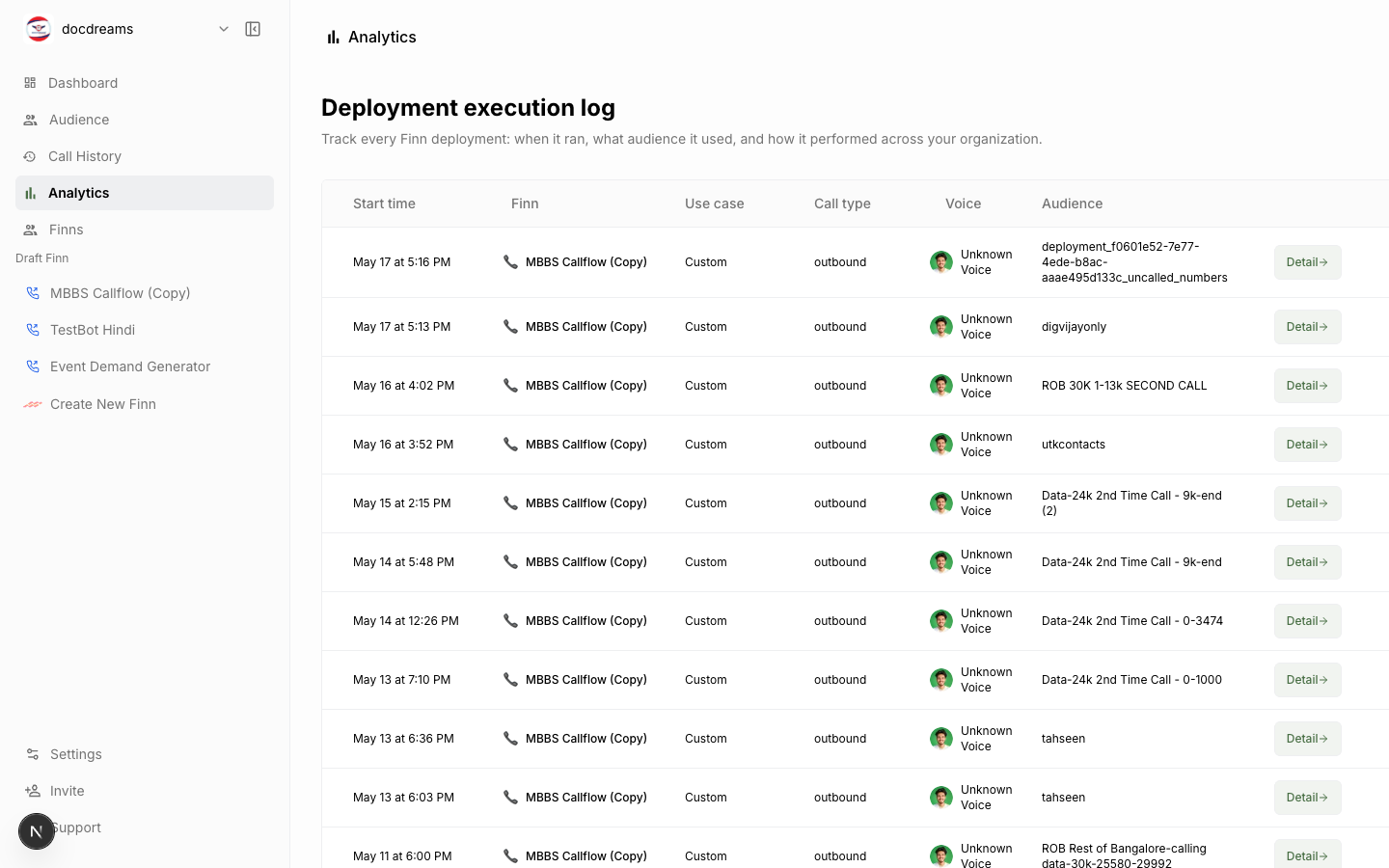 Analytics — deployment execution log with per-call drill-in.
The four metrics that matter
Most users live in these four numbers. Everything else is a debugging tool.
1. Success Rate
Percentage of completed calls that achieved the goal. The goal is whatever you defined in Post-Call Analysis as the primary success field.
Example: if your primary success field is
appointment_booked, success rate = (calls withappointment_booked = true) / (calls that connected and completed).
2. Completion Rate
Percentage of attempted calls that reached a real human and got through the conversation (vs. no-answer, busy, voicemail).
Low completion rate = bad list or bad calling hours. Not a Finn problem.
3. Average Duration
How long the average completed call lasts. Useful as a proxy for call quality:
- Too short (<20s) — Finn is being hung up on, or terminating early.
- Too long (>5min) — Finn is rambling, or not closing the loop.
- Steady — pricing predictability.
4. Cost per Successful Outcome
Total cost / count of successful calls. The economic truth. If a campaign costs $0.30 per booked appointment, you can scale it indefinitely.
Per-call view
Click any row in a call table to open the Data Extractor Sidebar.
You'll see:
- Caller info — name, phone, custom fields from the audience.
- Audio player — full recording with waveform scrubbing. Click any point in the transcript to jump to that moment.
- Transcript — speaker-attributed (Finn vs. Caller), timestamped.
- Post-call analysis fields — every structured field you defined, with its extracted value.
- AI analysis — sentiment, summary, outcome category.
- Telemetry — latency, ASR confidence, voicemail detection result, hangup cause.
- Tags — manual or rule-based tags applied to this call.
Navigation
Arrow keys move between calls without closing the sidebar:
- ↑ previous call
- ↓ next call
- Esc close sidebar
Editing transcripts
Click a transcript line to correct it. Edits update the analytics record (and feed back into ASR improvement if you opt in).
Aggregate views
Time series
Daily / hourly trends for success rate, volume, duration. Look for:
- Day-of-week patterns — Tuesdays book; Mondays don't.
- Time-of-day patterns — answer rates spike around lunch.
- Drift — gradual degradation often means your audience is going stale, not that the Finn got worse.
Leaderboards
- Best-performing Finns — sorted by success rate, volume-weighted.
- Worst calls — outlier durations, low sentiment, high latency. Audit these to find Finn bugs.
- High-value contacts — segments that convert above baseline. Feed these back to your CRM.
Post-call analysis breakdown
For every field you defined, a distribution chart:
- Boolean: bar chart of true/false.
- Enum: stacked bar of categories.
- String: word cloud + sample-of-5.
- Number: histogram + median.
Exporting
- Per-deployment CSV — every call row with all fields.
- PDF report — formatted summary suitable for sharing with stakeholders. Includes top-line metrics, charts, and notable transcripts.
- Webhook stream — push every completed call event to your endpoint in real time. Configure under Integrations.
Caching
Analytics aggregates are cached for performance. The dashboard shows a Cached badge when data is from cache. Click Refresh to force a recompute — usually unnecessary unless you suspect staleness.
Cache TTLs:
- Deployment list — 5 minutes
- Per-deployment summary — 1 minute
- Per-call records — never cached (always live)
Real-time vs. final numbers
While a deployment is live, success rate is computed against completed-so-far calls. The number can fluctuate as more calls finish. Wait for the deployment to complete (or for at least 100 calls) before drawing conclusions.
Debugging a bad campaign
If a deployment underperforms, work through this checklist:
- Open Live Deployments → health panel. Is anything red? Buffer drained? Dispatcher errored?
- Sort the call table by sentiment ascending. Listen to the worst 5 calls. Patterns are usually obvious within 3 calls.
- Check completion rate. If completion is low but successful-among-completed is fine, the problem is list quality, not Finn quality.
- Check post-call analysis fields. Is any field flagged as "extraction failed" disproportionately? That's a transcript or instruction issue.
- Look at average duration. Way too short = Finn is being hung up on early; check the welcome message.
- Compare against a known-good Finn. Run the same audience on a baseline Finn for 50 calls and diff the metrics.
Privacy & retention
- Recordings — stored for 90 days by default. Configurable up to 7 years for compliance.
- Transcripts — same retention as recordings.
- PII redaction — opt-in feature in Settings → Compliance. Redacts SSNs, credit card numbers, etc from transcripts and exported data.
- Caller consent — for jurisdictions requiring two-party consent, enable the recording disclaimer in the Finn's welcome message.
Next
- Integrations → — webhooks for real-time analytics streams.
- Billing & Plans → — cost breakdowns and forecasting.
- FAQ → — common analytics questions.
Was this page helpful?
Still stuck or have feedback?
Email support@hirefinn.ai or use the chat bubble in the bottom-right corner — it's a Finn that knows the Academy cold.