Creating a Finn
Set up your AI agent step by step.
A Finn is the AI voice agent itself. This page walks through every configuration field in the Create Finn wizard and explains what each one does.
Before you start. This page is long because it covers every field. Don't try to set them all at once. Most people fill out Identity, Voice, Welcome Message, and skip the rest on their first attempt — then come back and tune as they learn what matters for their use case. That's the right approach.
You won't break anything. Every field is editable later. Test calls are free. Nothing is published or live until you create a Deployment.
Faster path: if this is your first time, consider Quick Wins (5 things in 30 minutes) before this page.
Where to start
Sidebar → Create New Finn.
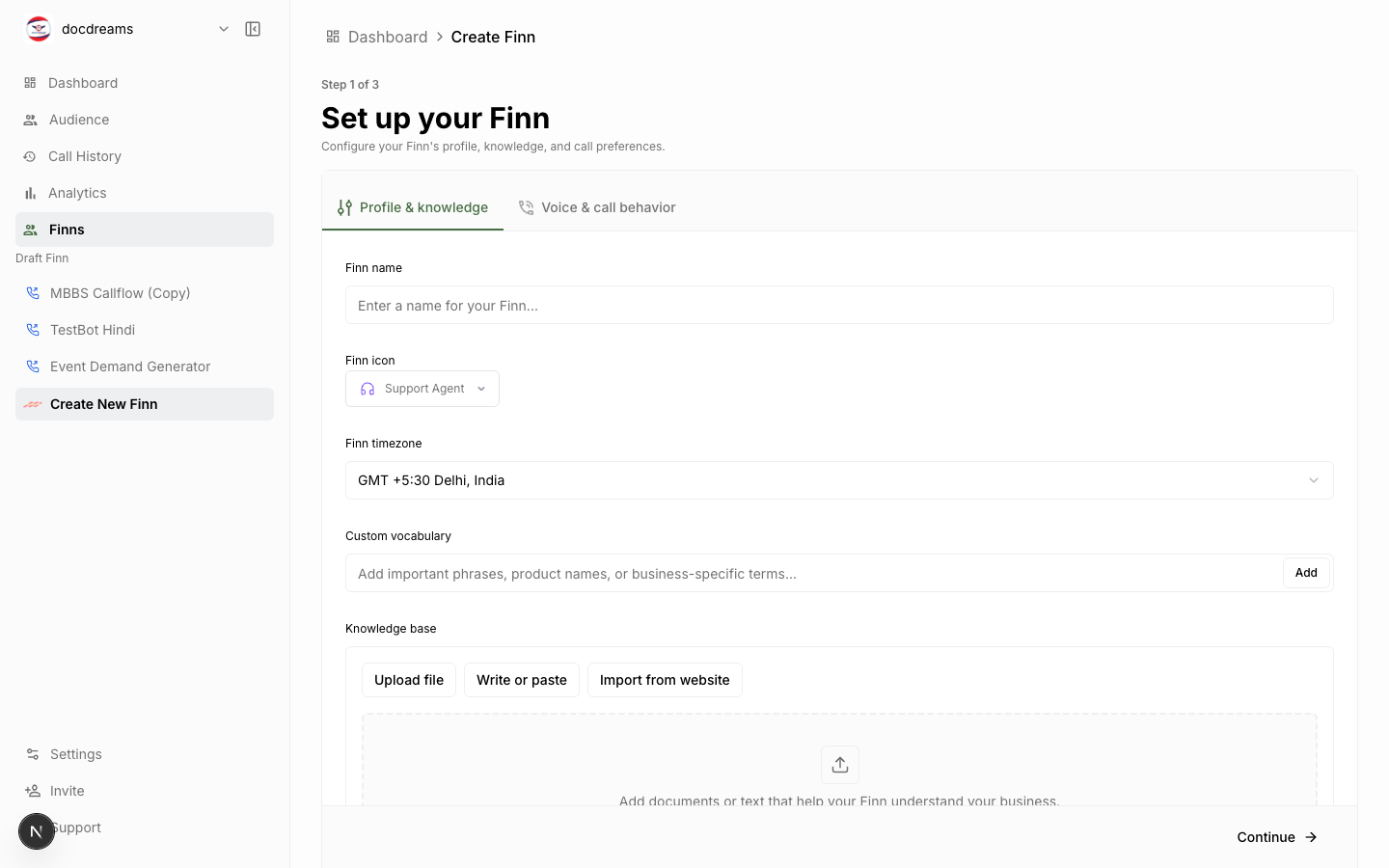 The Create New Finn wizard — pick a template or start from scratch.
The wizard is organized into tabs at the top of the page (Identity, Behavior, Knowledge Base, Workflow, Tasks, Call Settings, Post-Call Analysis). You can save and come back at any time; nothing is final until you actually deploy the Finn.
You'll see a Save button in the top-right corner of every tab. Use it often — saves don't trigger anything besides preserving your work.
Identity & voice
These settings define how the Finn sounds and presents itself.
Name
Internal label. Caller never hears this. Use a descriptive name so you can find it later: Inbound — Demo Booking, Outbound — Renewal Reminder.
Voice
Pick from the voice library. Each entry has a sample — listen before committing. Considerations:
- Tone match — calm and warm for healthcare; clear and direct for logistics; energetic for sales.
- Language coverage — some voices are single-language; others are multilingual.
- Latency — premium voices may add a few hundred milliseconds. The voice library shows latency tiers.
Language
Primary language the Finn speaks. Drives speech recognition, transcript output, and many TTS voice constraints. Pick the language your audience actually uses, not what's on your website.
Language Group
Used for voice/STT optimization. Most accounts default to global; regional packs improve accent handling for specific markets.
Time Zone
Used for scheduled deployments and calling-hour windows. Set it to wherever your callers live, not where you live.
Use Case
High-level category — sales, support, scheduling, surveys, etc. Affects analytics grouping and a few default behaviors. Pick whatever fits closest.
Finn Icon
Optional avatar shown in the dashboard. Cosmetic only; helps you scan a list of Finns.
Behavior
These fields shape what the Finn does, how it talks, and where its limits are. Treat them as the agent's "operating manual."
Identity Text
Who the Finn is. Includes name, role, and context.
You are Maya, a friendly receptionist at Acme Dental Clinic. The clinic is in San Francisco. You help patients book, reschedule, and cancel appointments.
Be specific. Vague identity = vague behavior.
Style & Guardrails
How the Finn should speak, and what it must never say or do.
Speak in short, conversational sentences. Sound warm but professional. Never give medical advice. Never quote prices — defer to "let me have someone call you back with pricing." If the caller seems upset, slow down and acknowledge their frustration before continuing.
This is the most underrated field. Specific guardrails prevent the model from improvising into trouble.
Response Guidelines
Formatting and behavior rules.
Always confirm the appointment date and time back to the caller before ending the call. If the caller gives a date without a time, ask for the time. Keep responses under two sentences unless explaining a procedure.
Welcome Message
What plays the moment the call connects.
- Dynamic — the Finn generates an opener based on identity + context.
- Defined — exact script. Use this for compliance-sensitive openings (e.g. "This call may be recorded.").
Defined messages are recommended for outbound; dynamic is fine for inbound.
Custom Vocabulary
A list of words or phrases the speech recognizer should expect — brand names, product SKUs, drug names, regional slang. Improves transcription accuracy materially.
Example:
["Acme", "FinnAI", "Ozempic", "DELT-450", "Doctor Patel"]
Knowledge Base
Where the Finn looks things up when the caller asks something. See Knowledge Base → for the full guide.
You can mix three sources:
- Uploaded files — PDFs, DOCX, plain text.
- Pasted text — copy-paste reference material directly.
- Website imports — give a URL; the platform crawls and indexes the pages.
The Finn searches across all sources during the call and pulls in relevant snippets.
Workflow
Optional. Visual node-based editor for structured conversation flows where you need precise control — e.g. multi-step intake forms, conditional routing, mandatory disclosures in a specific order.
See Workflows →.
If you skip this, the Finn runs in free-form mode, driven entirely by identity + guardrails + knowledge base. Most use cases work great in free-form.
Tasks
finn_tasks defines structured side-effects: book a calendar slot, send a follow-up email, write to a CRM, trigger a webhook. Configure under the Tasks tab.
Common tasks:
- Book calendar — connects via Google/Outlook OAuth, creates events.
- Webhook — POST call data to your endpoint at end-of-call.
- CRM update — write outcome fields back to HubSpot/Salesforce/Pipedrive.
Call settings
Operational parameters that govern how each call behaves.
| Field | What it controls | Sensible default |
|---|---|---|
max_idle_duration | How long silence is allowed before the Finn re-prompts | 10s |
idle_reminder | What the Finn says during a re-prompt | "Are you still there?" |
limit_call_duration | Hard ceiling on call length | 5 mins |
voicemail_detection | What to do if voicemail picks up | End call if voicemail detected |
handoff_number | Number to transfer to if escalation triggers | (optional) |
AI service configuration
Advanced. Only change if you have a reason.
- LLM service — which language model powers the Finn. Default is fine for most use cases.
- TTS service — text-to-speech engine. Tied to voice selection.
- STT service — speech-to-text. Default works for most languages.
Post-Call Analysis
Define the structured data you want extracted from every call.
Each field is a question + an expected type:
| Field name | Question | Type |
|---|---|---|
appointment_booked | Did the caller book an appointment? | boolean |
callback_time | What time did the caller request a callback? | string |
interested | Did the caller express interest? | boolean |
objection_raised | What objection did the caller raise? | string (nullable) |
sentiment | Overall caller sentiment | enum: positive / neutral / negative |
After every call, the platform runs an LLM pass that fills these fields based on the transcript. You'll see them in the Deployment Analytics view.
Testing
From the Finn page, click Test on Call or Test on Chat.
- Test on Call — the Finn calls your phone. Closest to a real interaction.
- Test on Chat — text-based simulation in the browser. Fast iteration without burning call minutes.
Test relentlessly before launching. Cover edge cases: confused callers, hostile callers, callers who go off-topic, callers with accents your training data may not have covered.
Editing a Finn
Sidebar → View All Finn → click the Finn → Edit.
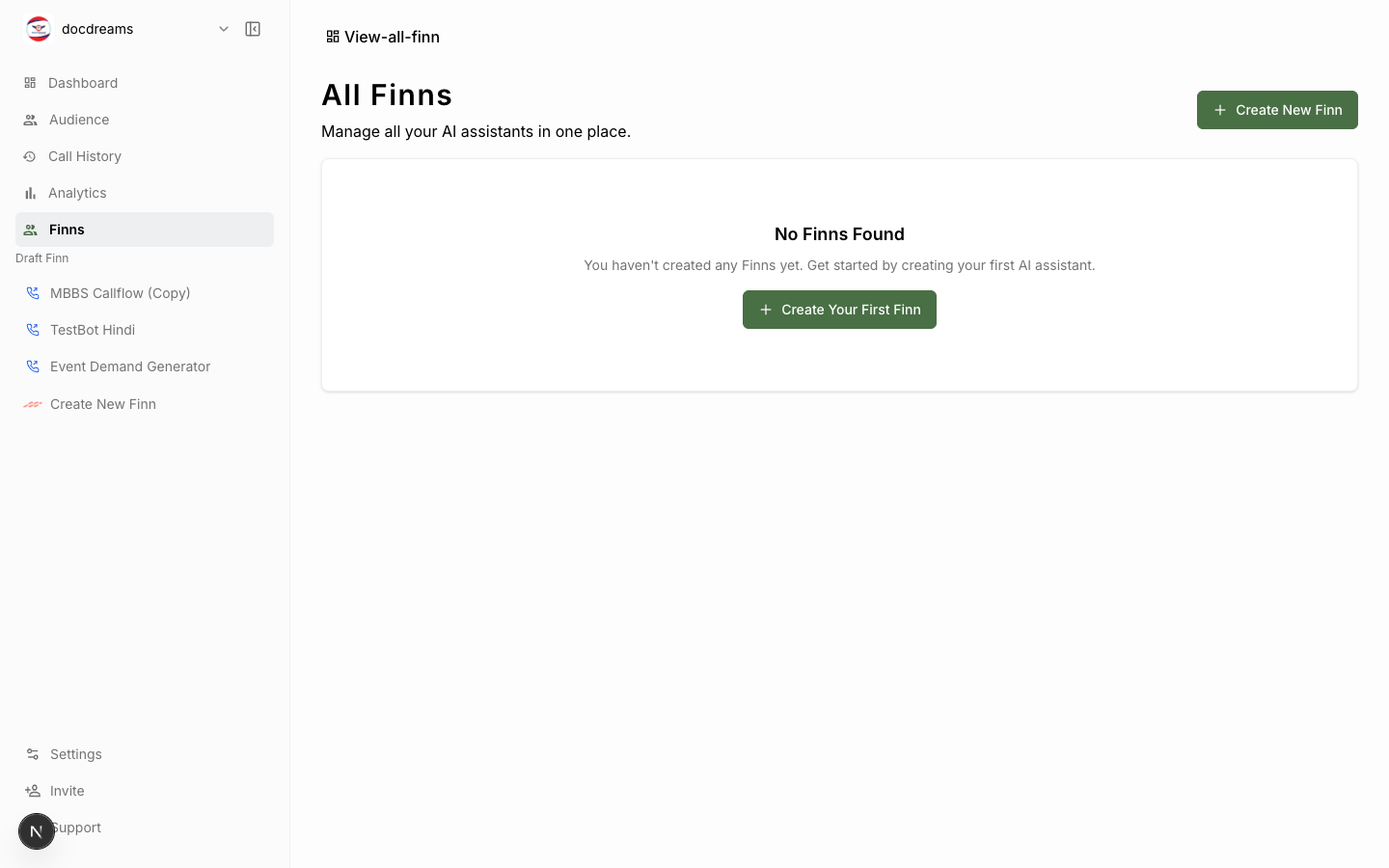 View All Finn — every Finn in your account, click to edit.
All fields above are editable. Changes apply to new calls; in-flight calls finish under the old config.
Versioning
The platform keeps a history of Finn configurations. You can roll back if a change degrades performance. See View All Finn → [Finn] → History.
Next
- Knowledge Base → — feed your Finn the right context.
- Workflows → — structured flows for complex use cases.
- Campaigns & Deployments → — put your Finn on real calls.
Was this page helpful?
Still stuck or have feedback?
Email support@hirefinn.ai or use the chat bubble in the bottom-right corner — it's a Finn that knows the Academy cold.