Audience Management
Add your contacts — CSV upload or CRM sync.
An Audience is the list of people your Finn will call (outbound campaigns) or be expected to handle (inbound segmentation). Think of it like a contact list — but with extra information that helps the Finn personalize each call.
Before you start. The two paths to getting contacts in are CSV upload (fastest for one-off lists) and CRM sync (best when contacts are constantly changing). Most users start with CSV to test, then switch to CRM sync once they're ready for production.
Test calls don't need a real audience. When testing a Finn on yourself, you don't need to set up an audience at all — just use the "Test on Call" button on the Finn page. Audiences are for real campaigns.
Where to find it
Sidebar → Audience.
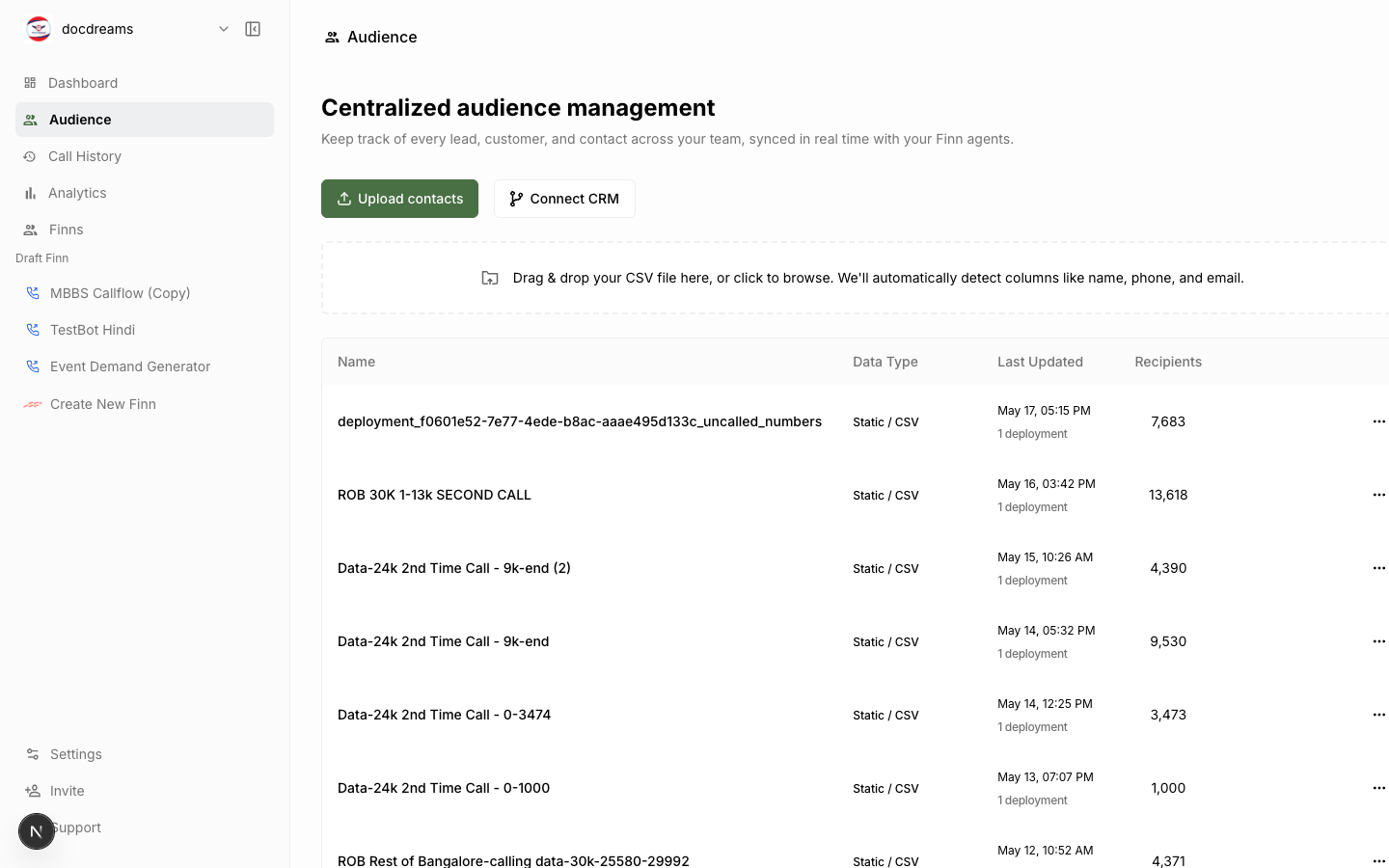 The Audience page — every contact list you've created, with row counts and import status.
The page lists every audience you've created, with row counts and last-updated timestamps. Click into one to view, edit, or export contacts.
Importing via CSV
The fastest way to get contacts in.
Required headers
Your CSV must contain these columns, named exactly:
name, phone_number, country_code
name— the caller's display name. Used by the Finn ("Hi, is this Alice?") and shown in analytics.phone_number— local digits only. No country code, no formatting.country_code— with leading+. Examples:+1(US/Canada),+44(UK),+91(India),+61(Australia).
Optional headers
Any extra column becomes a custom field the Finn can reference during the call. Use this to pass context.
name, phone_number, country_code, account_tier, last_order_date, account_manager
Alice Chen, 5551234567, +1, Enterprise, 2026-03-12, Sam Patel
Bob Singh, 9876543210, +91, SMB, 2026-01-05, Maya Lee
Inside the Finn's instruction or workflow, reference fields with {{account_tier}} syntax. Example:
Greet the caller by name. If
{{account_tier}}is "Enterprise", mention that they have priority support.
CSV formatting gotchas
- Encoding — save as UTF-8. Excel sometimes defaults to ISO-8859-1, which breaks accents and non-Latin scripts.
- Quotes — wrap fields containing commas in double quotes:
"Patel, Sam". - Empty cells — leave blank, don't write
nullorn/a. The platform treats those as literal strings. - Duplicate numbers — the platform de-duplicates on
(country_code, phone_number). The first occurrence wins. - Headers — must be on row 1. Don't add a title or instructions above the header row.
Validation
After upload, the platform validates every row and shows you:
- Valid — ready to call.
- Invalid phone — number couldn't be parsed (wrong format, too short, etc).
- Duplicate — number already exists in this audience.
- Suppressed — number is on the global do-not-call list.
You can edit invalid rows inline before committing the import.
CRM Integration
Sync contacts directly from your CRM. No CSV exports, no stale data.
Supported CRMs
- HubSpot — lists, smart lists, contact properties.
- Salesforce — lists, reports, lead/contact objects.
- Pipedrive — filters, person/deal entities.
Connecting
- Settings → Integrations → click your CRM.
- Authorize via OAuth (you'll be redirected to your CRM, then back).
- Pick which lists/segments to import.
- Set a sync schedule (every 15 min, hourly, daily) or sync on demand.
Field mapping
After authorization, map your CRM fields to FinnAI fields:
| FinnAI field | Typical CRM field |
|---|---|
name | First Name + Last Name |
phone_number | Phone / Mobile Phone |
country_code | Country (or hardcoded) |
| custom fields | any property |
Mappings are saved per CRM connection. Change them later under Settings → Integrations → [CRM] → Field Mapping.
Two-way sync
By default, sync is one-way (CRM → FinnAI). To write call outcomes back to your CRM, enable Outcome Sync during connection setup. Each call result becomes a CRM activity log entry or property update.
Manual entry
For one-off contacts (testing, demos): Audience → [Audience] → Add Contact. Fill in name, country code, phone, and any custom fields.
Segmenting
Within an audience, you can create segments — filtered subsets based on any custom field.
Example: in a 50,000-row audience tagged with
account_tier, create a segmentEnterprisethat filtersaccount_tier = "Enterprise". You can then deploy a different Finn to just that segment.
Segment definitions are dynamic — when underlying contacts change, the segment updates automatically.
Suppression lists
Globally suppress numbers you should never call:
- Settings → Compliance → Do Not Call List — paste or upload numbers.
- Numbers on this list are silently dropped from every deployment, regardless of which audience they live in.
Use this for unsubscribes, complaints, regulator-listed numbers, and internal numbers you don't want accidentally dialed.
Exporting
Audience → Export → CSV. Includes all custom fields and the original import timestamp.
Audience size limits
| Plan | Max contacts per audience | Max audiences |
|---|---|---|
| Starter | 5,000 | 10 |
| Growth | 50,000 | unlimited |
| Enterprise | unlimited | unlimited |
Hitting a limit? See Billing & Plans →.
Common patterns
- Cold list — single audience imported from CSV, deployed once, archived.
- CRM-synced active pipeline — auto-syncing audience of "leads in stage X." Deployment runs continuously, picking up new leads as they arrive.
- Segment-by-tier — one large audience, multiple segments, different Finns per segment.
- Test audience — a 5-row audience with your own number plus colleagues. Use this for every deployment dry-run.
Next
- Campaigns & Deployments → — point a Finn at an audience.
- Integrations → — full CRM + calendar + webhook reference.
Was this page helpful?
Still stuck or have feedback?
Email support@hirefinn.ai or use the chat bubble in the bottom-right corner — it's a Finn that knows the Academy cold.